 WayToAI

Vole
Preview first, then clean
CLI and macOS App · preview first · recoverable by default · protocol-ready
Pain points
Disk grows. Blind deletes scare you.
The disk is full, and you cannot tell what to delete. Caches, logs, and leftovers scatter under $HOME · one-click feels good until something breaks
-
Hard to see
Who is really using those dozens of GB?
-
Afraid to act
What got deleted — and can you roll it back?
-
Hard to automate
Scripts and CI do not fit interactive kitchen-sink tools
Safety
Destructive actions, deliberately awkward
“Safety first” lives in defaults — not in a disclaimer footer
- Path checksRe-run protection lists and allowlists before delete
- plan → applyExpired or changed paths get revalidated
- Recoverable by defaultTrash · permanent delete needs --permanent
- Honest metricsDoes not market “trashed” as “disk freed”
- Action logvole history for review
- Show firstNever delete as soon as the scan ends
- Select, then actThe app waits for your confirmation
- Single Rust binaryNo bash runtime dependency — install and run
- Orchestratable protocolFrozen Plan / Report · shared by CLI and desktop
Features
Day-to-day maintenance, one chain
See usage → clean / uninstall → bounded optimize · menu or subcommands
-
$ vole cleanPredictable behaviorDeep clean
531 TOML rules · --plan first, then --apply
-
$ vole uninstallNo empty shellsSmart uninstall
Remove the app and user-domain leftovers · same plan → apply
-
$ vole optimizeSkips explainedBounded optimize
No-sudo primary path · skips with reasons when it cannot
-
$ vole analyzeInsight before cleanDisk insight
Drill into size under $HOME and find what truly owns space
-
$ vole statusHuman and machine readableLive monitor
CPU / memory / disk overview · --json when you need it
-
$ vole historyAuditableHistory & completions
Review past actions · shell completions and allowlists
How to
Three steps: see → confirm → act
-
Preview
vole clean --plan — no file changes
-
Confirm
Read the plan; exclude paths that should stay
-
Apply
vole clean --apply <plan.json> (Trash by default)
Install CLI
Install, then run one preview
brew tap wukongnotnull/vole https://github.com/wukongnotnull/vole
brew install volePrebuilt packages · build from source (Rust 1.97+)
After install
vole clean --planDownload App
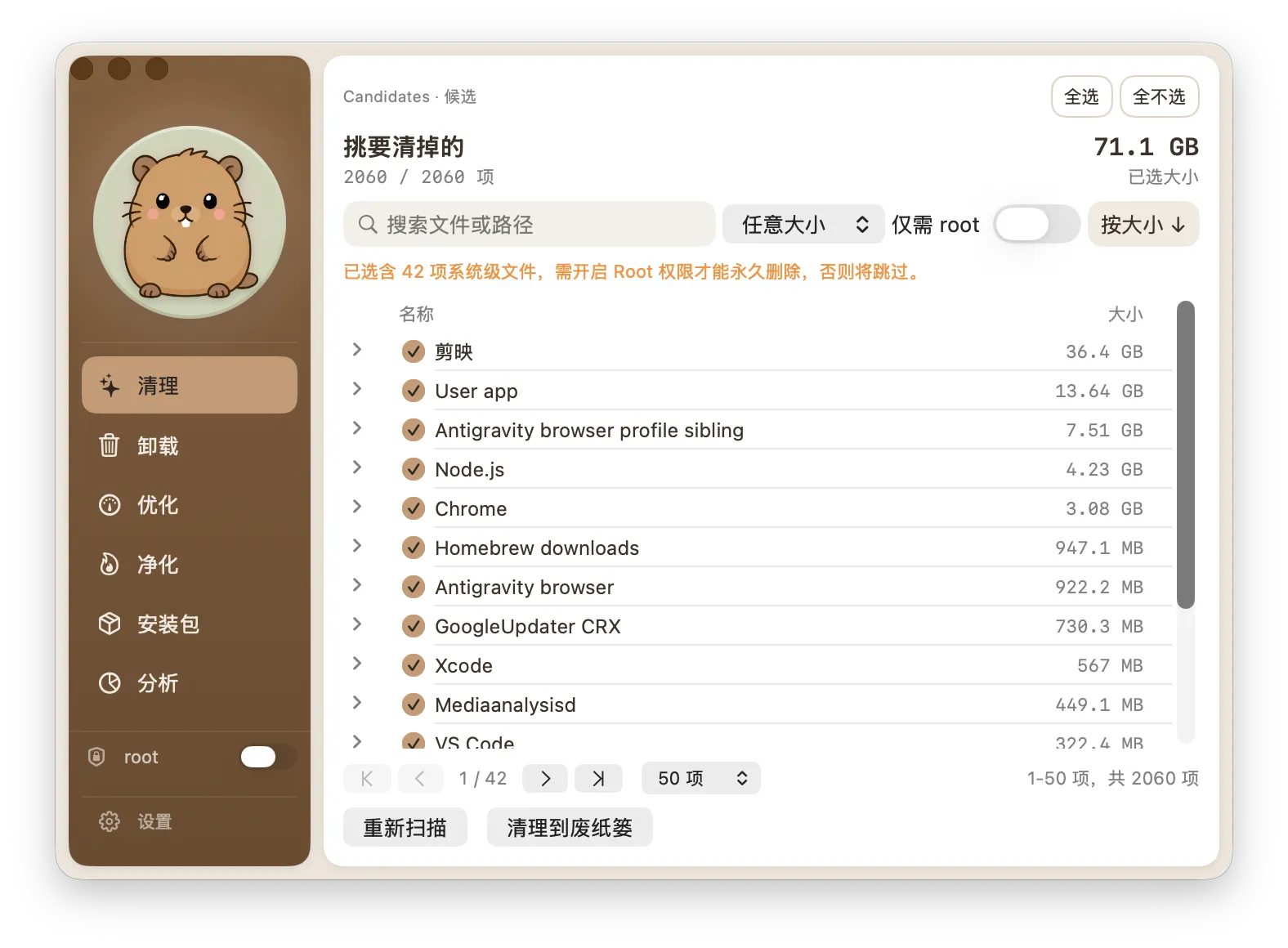
Same principles, native UI
Preview, select, then clean.
- Clean
- Uninstall
- Analyze
- History
Apple Silicon · Intel · Notarized
Compare
Shared safety DNA. Vole is more restrained.
Same protected paths and rules · Vole is built to preview, recover, and script
View comparison
| Dimension | Vole | Mole |
|---|---|---|
| Impl | Pure Rust single binary — install and run | Bash + Go script suite |
| Clean | plan → apply, Trash by default | dry-run + deep pipeline |
| Deps | No third-party CLIs | Some flows need extra tools |
| Orchestration | Frozen protocol — CLI, app, and scripts share one contract | Interactive kitchen-sink suite, heavier to script |
Rules and safety semantics derived from tw93/Mole · Vole CLI is an independent fork, not part of Mole
Privacy & open source
Your files do not need to leave your Mac
Everyday scans and cleanups stay local. Vole does not upload your files to decide what to remove. The code is public, so cleanup logic and safety boundaries are not a black box.
- Runs locally
- Open & transparent
- No silent uploads
Who it is for
If this is how you use a Mac, Vole fits
- Your disk keeps filling up and you cannot tell where space went
- You have uninstalled many apps and worry leftovers keep piling up
- You often use Xcode, Rust, Node.js, and other developer tools
- You want to clean your Mac without handing control to “one-click accelerate”
- You care about privacy and want cleanup to stay on-device
- You like open source and want both a CLI and a graphical app
FAQ
Frequently asked questions
Does it delete files automatically?
No. Candidates are shown first. You confirm before anything is cleaned.
Can I recover a mistaken delete?
Trash by default. Permanent delete must be explicit.
Does it upload my files?
Everyday scans and cleanups stay local. No cloud account.
Is it free? What is the license?
GPL-3.0. Free to download and use. Forks should rename and credit the source.
What if I am unsure?
On the CLI, run vole clean --plan only. In the app, leave items unchecked.
Can I change the rules?
Yes. Disable TOML rules, or manage your own via VOLE_RULES_DIR.
Can I script against it?
Yes. --json / --json-stream align with the frozen protocol.
Why does the app need Full Disk Access?
macOS protects some user folders. With it, scans are more complete. You can use it without, but results may be thinner.
Do I have to enable the Root helper?
No. It is only for some system paths. Without it, those paths are skipped and explained.
What does Optimize do in the app?
Bounded system maintenance, clearly scoped. Nothing runs unless you select it.
What is Purge?
It finds stale project build artifacts so developers can reclaim cache-eaten space.
Can it find leftover installers?
Yes. The app spots leftover .dmg and .pkg files.
How do I see machine status?
The app Status screen shows CPU, memory, disk, and health. On the CLI, run vole status.
next
Less impulse. More control.
See candidates, then decide. CLI or app — same principles.